Custom Tasmota Firmware
Newer Smart Hut Tasmota plugs use a custom Tasmota build based on upstream Tasmota with Smart Hut defaults and a simplified web interface.
The firmware is still Tasmota, so standard Tasmota commands and integrations apply, but some menus have moved and some risky options are hidden or protected.
Smart Hut Defaults
The custom firmware includes the Smart Hut plug template by default:
{"NAME":"Smart Hut PM","GPIO":[0,0,0,2656,224,2624,320,2720,0,0,0,0,0,0,0,0,0,0,0,0,32,1],"FLAG":0,"BASE":1}
This configures the plug relay, button, LED, and power monitoring hardware.
Default identifiers:
- Hostname:
smarthutpm-XXXXXX - MQTT topic:
smarthutpm-XXXXXX
XXXXXX is based on the device MAC address, so each plug should have a unique default name.
Main Menu Layout
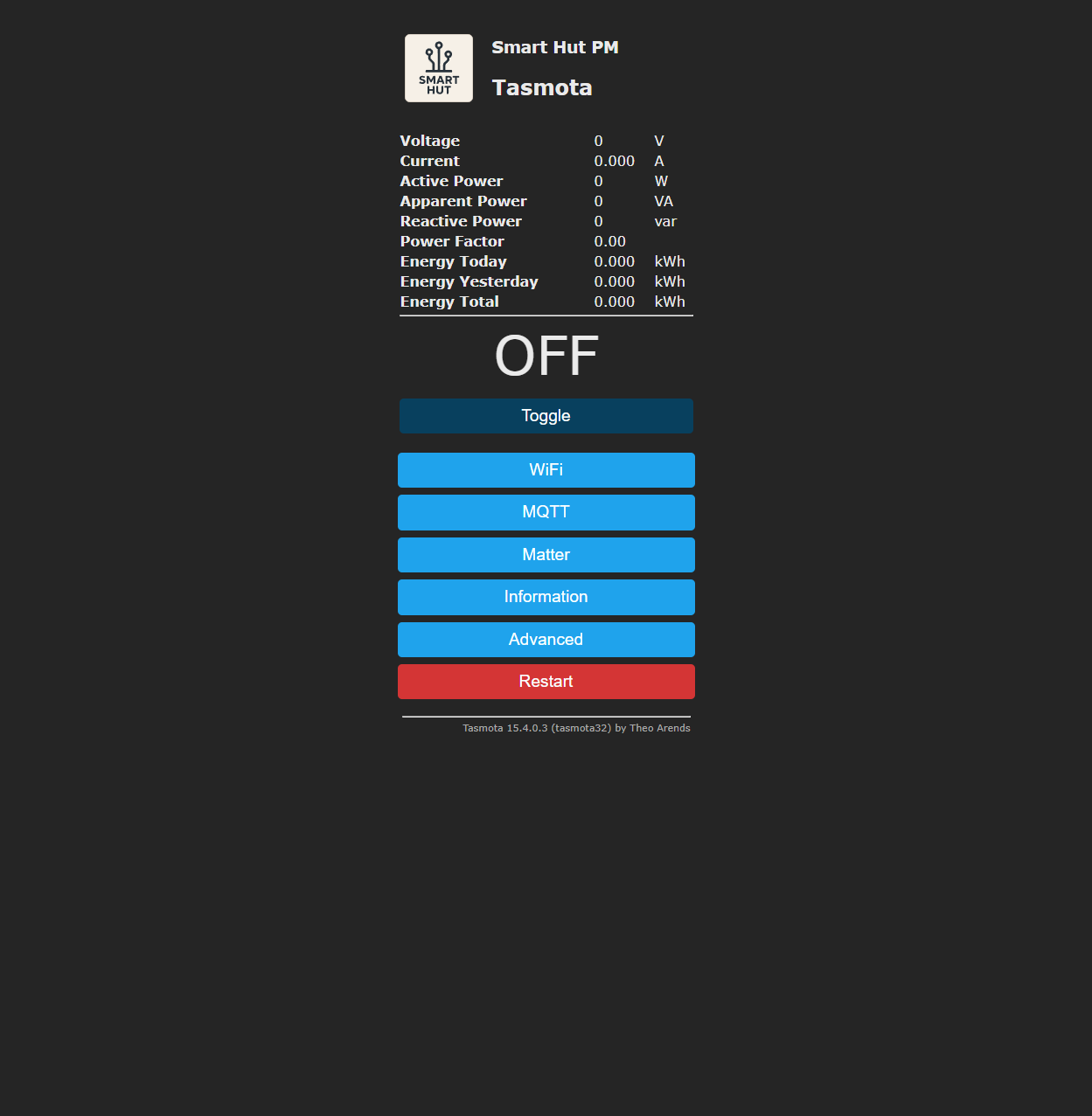
The main menu is simplified for normal plug setup and use.
Main menu buttons:
- WiFi: connect the plug to your network.
- MQTT: enable MQTT and set the device name or friendly name.
- Matter: enable or reopen Matter commissioning.
- Information: view device and firmware information.
- Advanced: access advanced Tasmota configuration, tools, console, and firmware upgrade options.
- Restart: restart the plug.
Advanced Menu Safety
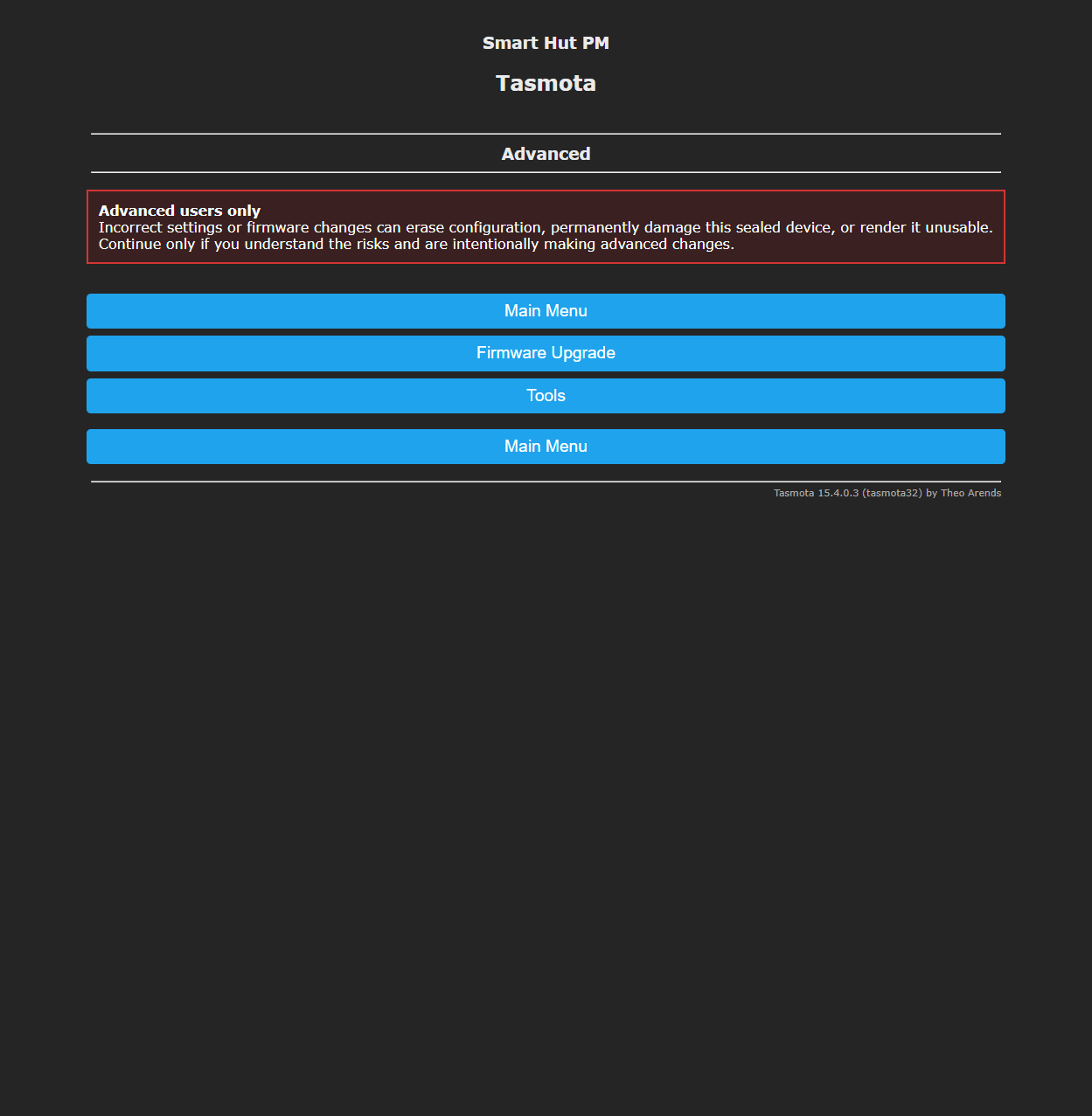
The Advanced page displays a warning because incorrect settings or firmware changes can erase configuration or make the sealed plug unusable.
Advanced options are intended for users who understand Tasmota configuration and firmware updates.
Hidden Or Protected Options
To reduce accidental misconfiguration, the custom firmware hides some stock Tasmota buttons from the normal configuration flow.
Hidden from the standard configuration page:
- Module configuration
- Template configuration
- Backup configuration
- Restore configuration
Firmware upgrade is still available through Advanced, but the upgrade page requires explicit confirmation before an OTA or file upload upgrade can continue.
Only install firmware that is known to be compatible with the Smart Hut plug hardware and partition layout. Flashing the wrong firmware can make the sealed plug unusable.
Reset Protection
Fast power-cycle reset is disabled in the Smart Hut build. This prevents accidental repeated power interruptions from wiping customer settings.
If you need to reset or reconfigure Wi-Fi, use the web interface or the physical button recovery action instead.
Physical Button Recovery
The firmware includes a recovery rule that can reopen Wi-Fi configuration from the physical button.
Use this if the plug can no longer connect to your Wi-Fi network:
- Power the plug on and wait for it to boot.
- Press the physical button three times to enter Wi-Fi configuration mode.
- Connect to the temporary Tasmota Wi-Fi network.
- Browse to
http://192.168.4.1if the portal does not open automatically. - Enter the new Wi-Fi details and save.
Matter Support
Matter support is included in the custom build and exposed from the main menu. See Tasmota V2 Matter for commissioning guidance.
MQTT Support
MQTT is available and the default MQTT topic is based on the plug MAC address. See Tasmota V2 MQTT for setup guidance.